
How to create a Google review QR code
A Google review QR code opens the review form for your business. Find the correct location, download its QR code, and test it before you print. You can create the link and download the QR code without registration.
Create your Google review QR code
Create and test your review QR code
1. Find the correct business. Enter the business name and city in the generator and select the correct result. Or paste the business’s Google Maps URL and generate the review link.
2. Verify the name and address. Check the business details. Open the generated link and make sure it shows the review form for the correct location.
3. Download the generated QR code. Use the QR download control to save a PNG or SVG file. The review generator creates the QR code for you.
4. Test before printing. Scan the QR code with a phone. Check that it opens the correct review form. Test a printed sample at the size you plan to use before you print more copies.
Where to place a review QR code
Place it where customers can give feedback at the end of their visit:
- Receipts, menus, and table cards.
- Checkout counters and reception desks.
- Waiting areas, guest folders, and hotel rooms.
- Product packaging, business cards, and follow-up messages.
Keep the code visible and easy to scan. Use a neutral request, such as “Share your experience on Google.” Invite every customer to leave honest feedback.
Why use a Google review QR code?
A direct review QR code removes the need to search for your business. Customers scan the code and open the review form for the selected location. It can make the request easier to follow, but it does not guarantee more reviews or a higher search position.
You do not need management access to the Google Business Profile to create a public review link. Managing the profile is a separate task.
QR code touchpoints for your business
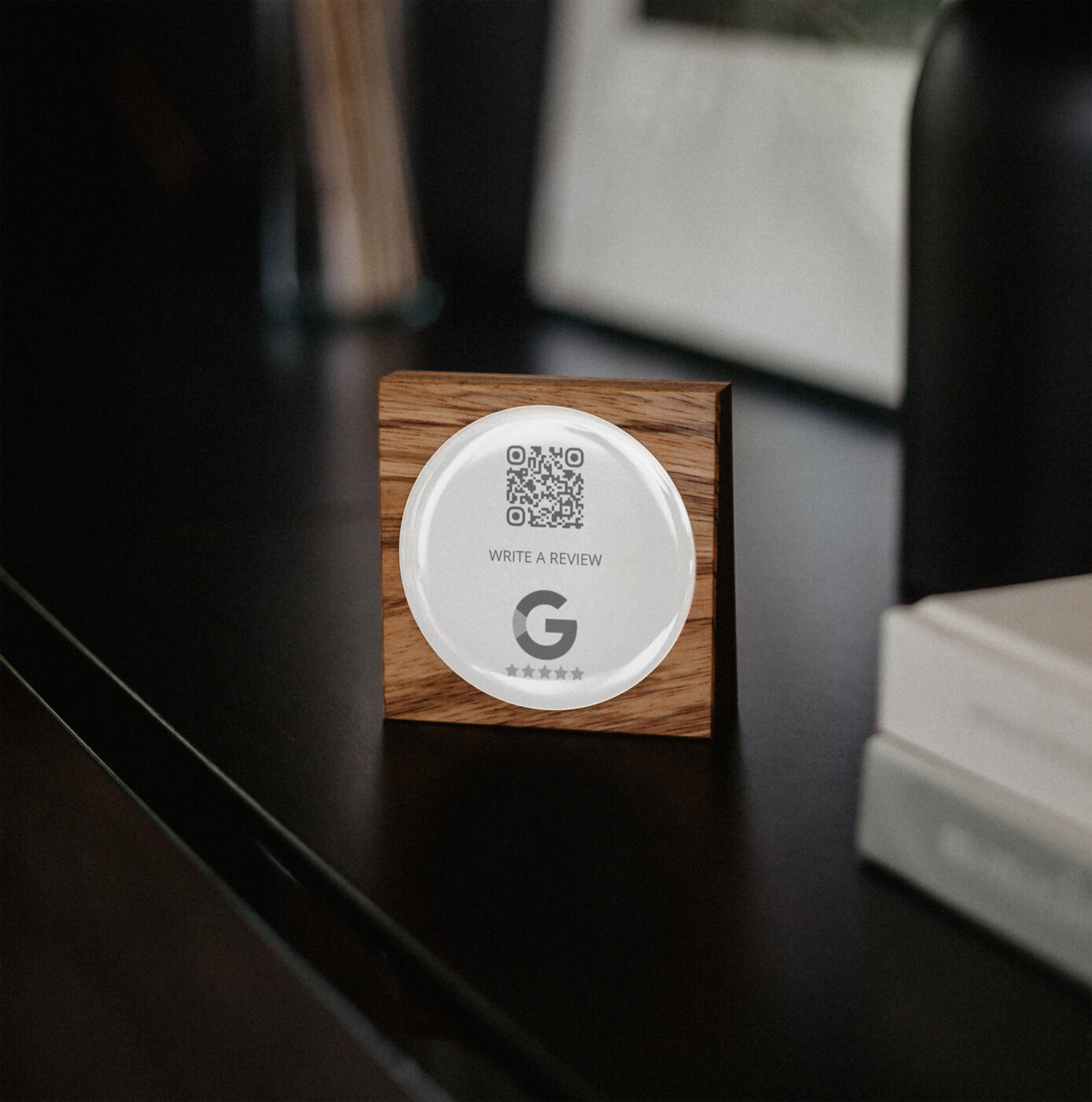
Productmate offers physical QR and NFC touchpoints for tables, counters, and reception areas.